 Years 1–9
Big screenBeta
Learn & Study on TV: lessons on the big screen
Learn & Study on TV puts a Quizo School lesson on the big screen: at home on the sofa, or on a projector with a tutor or a small group. The warm-up quiz, the lesson video with its transcript, the quiz and the next lesson are all there, laid out to read from across the room and made for a remote control.
Photo: Wemax Projectors on Unsplash
- Betastill being tested on more TVs and browsers
- Any big screena smart TV, a projector, or a laptop plugged into a TV
How it works
- It is the lesson, on the big screen. The steps are the ones on a laptop, in order: a warm-up quiz, the lesson video with a scrolling transcript, a quiz, then the next lesson. Text and buttons are large enough to read from the sofa.
- It is made for a remote. The arrow buttons move around the screen, OK chooses, and Back steps back. The number buttons work for the code, and a keyboard works too. Nothing needs a mouse or a touch screen.
- There are two ways to start. Full Screen opens the lesson full screen on the device you are using, which suits a laptop plugged into a TV, and Exit brings you back. Access Code makes a code that you type on a different screen, such as a smart TV, at quizo.school/key.
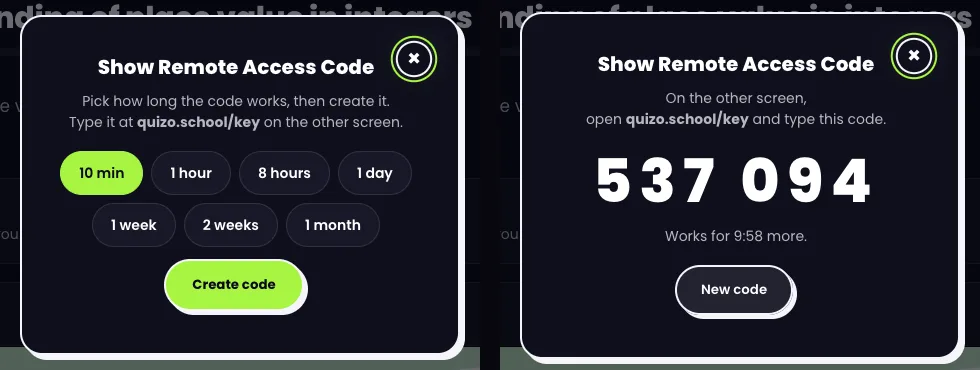
- Codes are short-lived. A code that works for ten minutes is six numbers. Longer ones, up to a month, are eight letters and numbers, without look-alike characters. Once used, the TV stays signed in for a period, a wrong code five times means waiting ten minutes, and Exit signs the TV out.
- Results go to the child's profile. The warm-up, how far the video got and the quiz scores are saved to the profile that made the code, like any other lesson. The TV only receives the child's initial and avatar.
- It is a beta. It is free on every plan and works in current TV browsers, but TVs differ and we have not seen them all. If something looks wrong on yours, tell us which TV it is and we will look.
Set it up in five steps
Open a lesson on a phone, tablet or computer
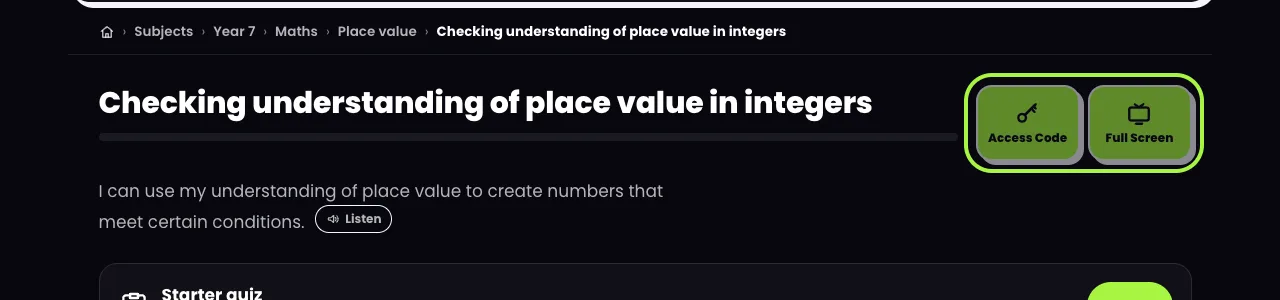
Sign in, open the child's profile and open any lesson. Beside the lesson title are two buttons: Access Code and Full Screen.
Choose how to show it
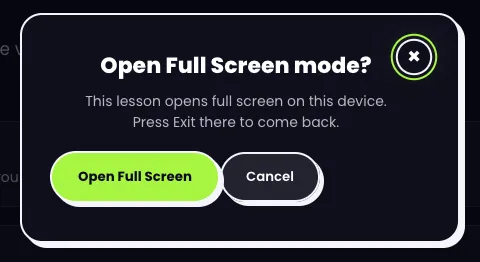
Full Screen opens the lesson on the device in your hands, after one question to confirm. Access Code is for another screen: pick how long the code should work, from 10 minutes to a month, then create it.
On the TV, type the code
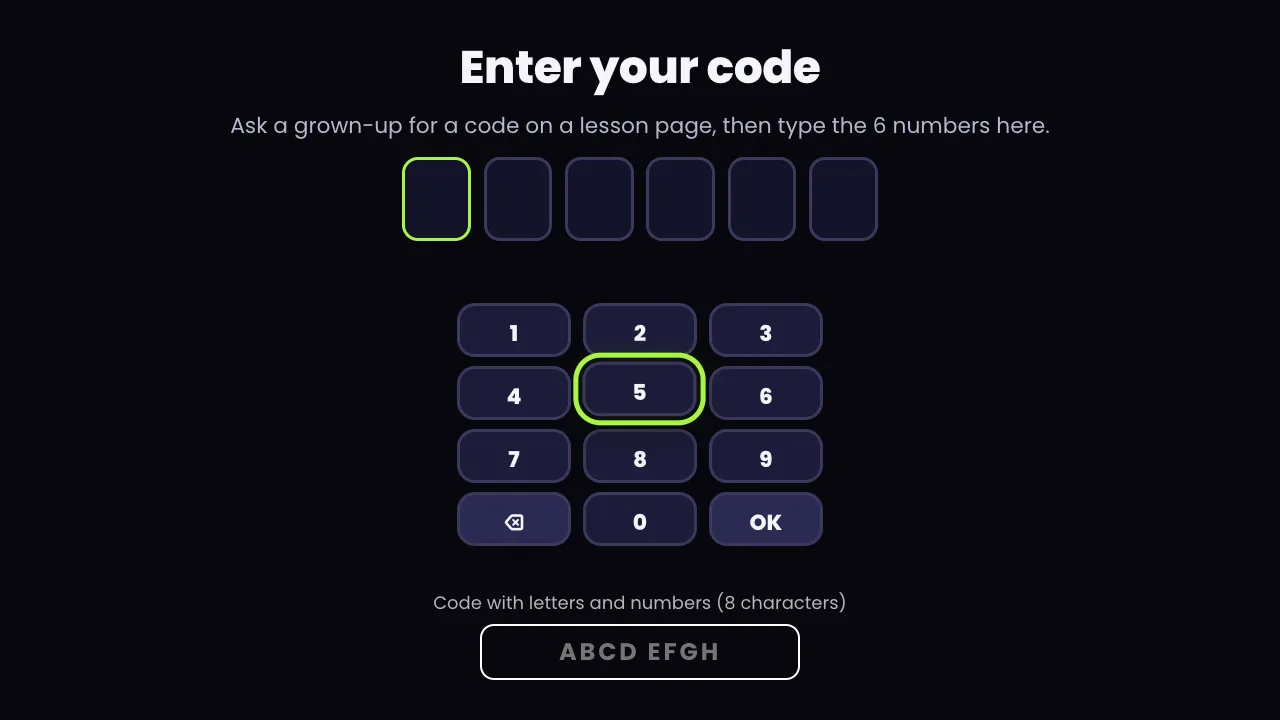
Open quizo.school/key in the TV's web browser, then type the six numbers with the remote's number buttons or the on-screen pad. A longer code with letters goes in the box below.
Warm up, watch, then take the quiz
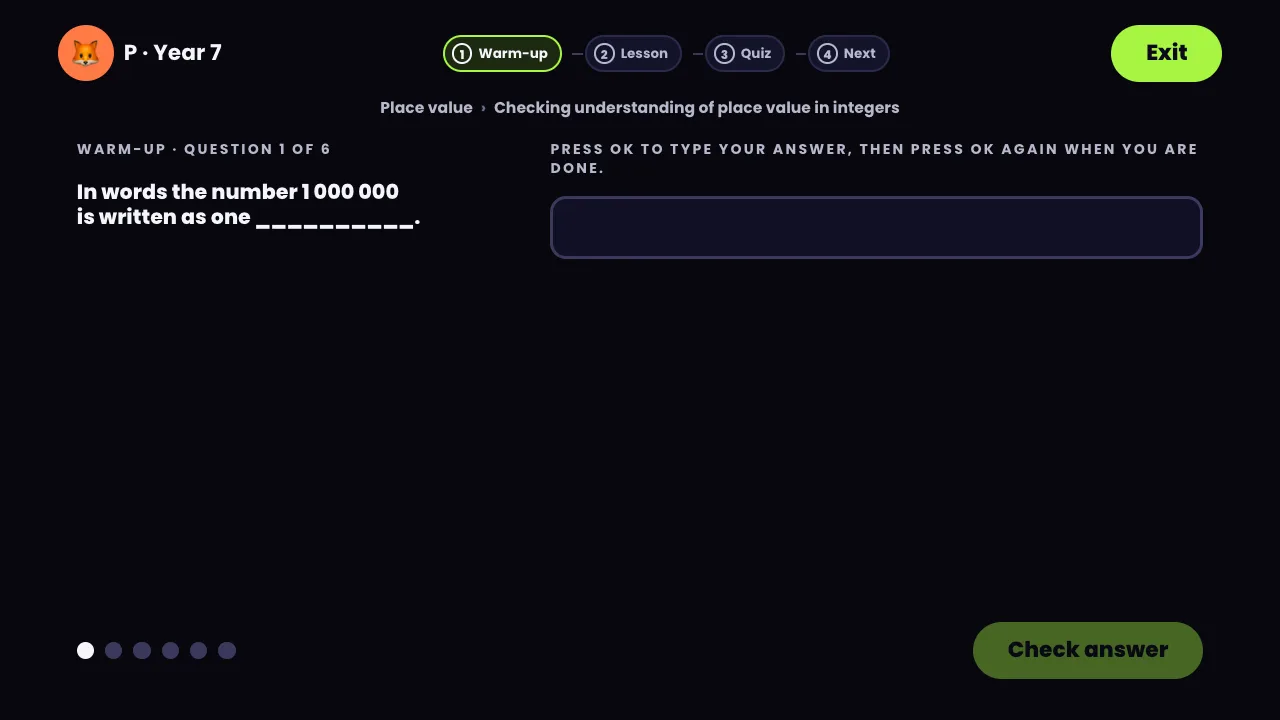
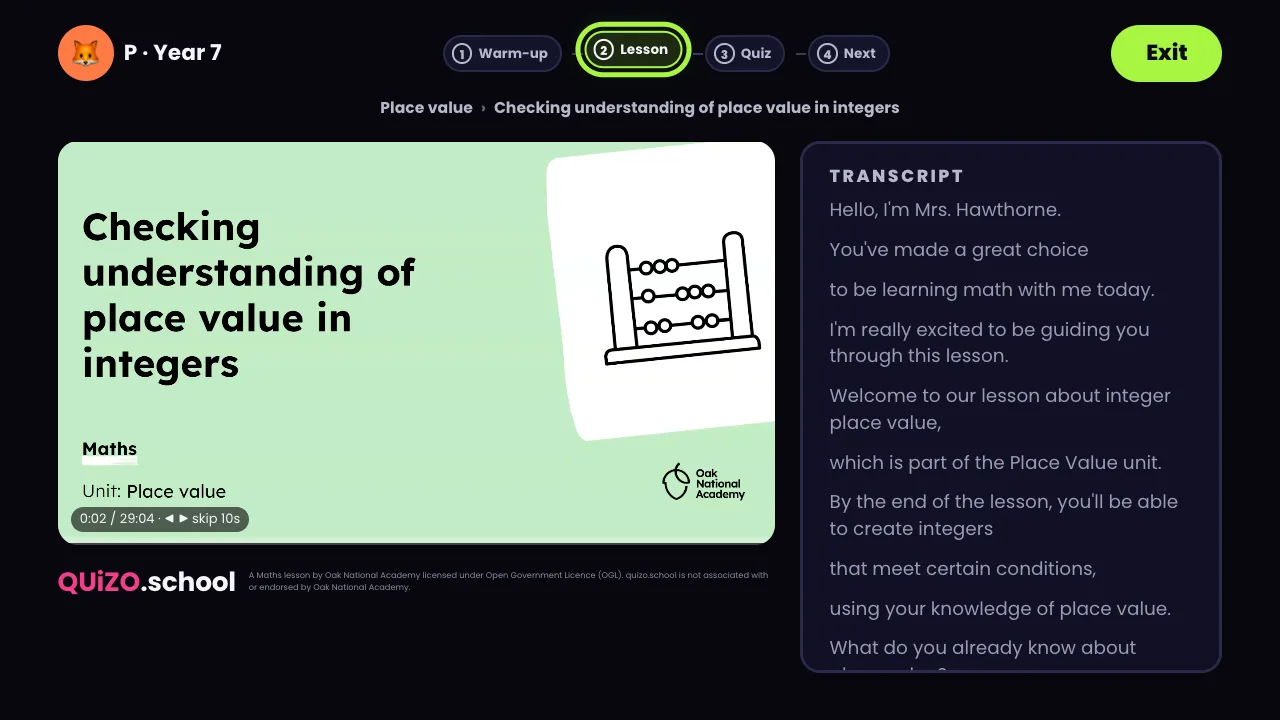
The lesson starts with the warm-up questions, then plays the video with its transcript beside it. Use up and down to scroll the transcript, OK to pause and left or right to skip ten seconds. The quiz comes last.
Keep going, or finish
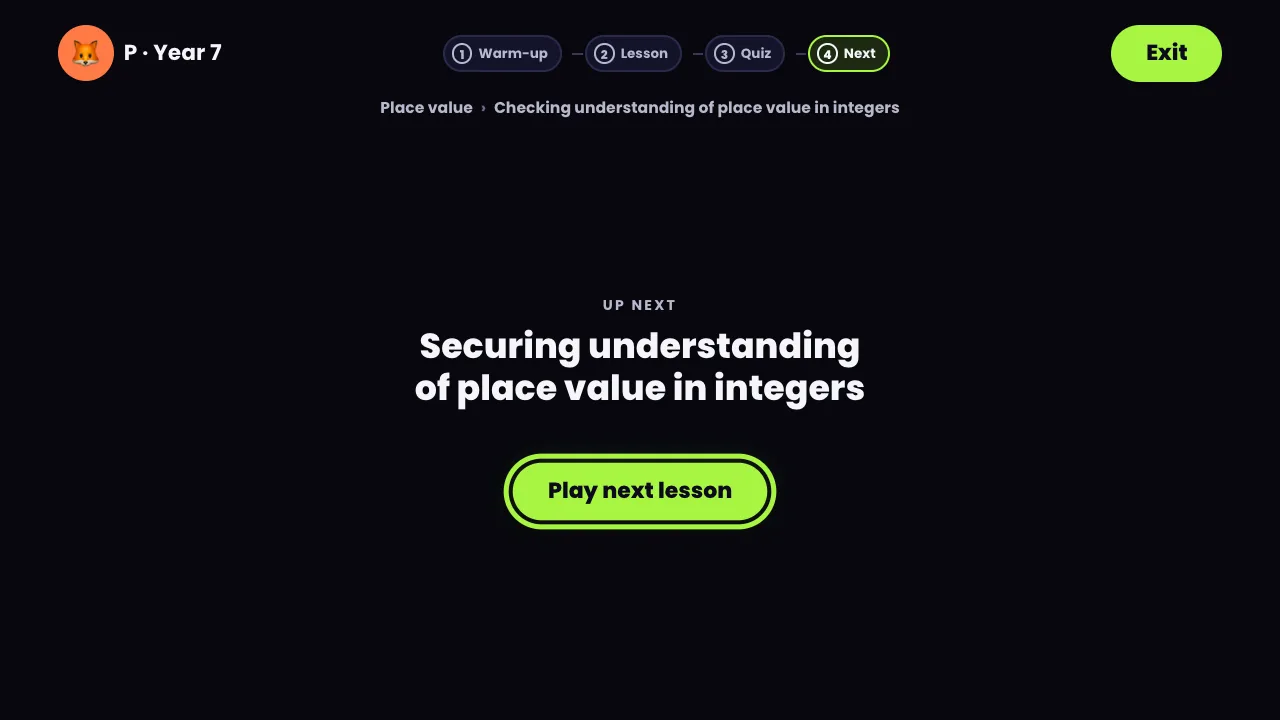
Up next offers the next lesson in the unit, and Play next lesson carries on. Exit at the top right signs the TV out and, with Full Screen, takes you back to the lesson page.
At home and with a group
Make it a family slot
Put the warm-up on the TV and talk through each answer together. A question explained aloud sticks better than one clicked through.
Use a longer code for a routine
For a regular slot, such as Thursday after tea, make a code for a week and keep it private. Choose a short one when the TV is shared with guests.
Tutors and small groups
One profile on the projector, one lesson at a time, with the group talking each answer through. Everything is saved to that one profile. If you are thinking of a whole class or school, write to us.
Let the transcript help
Reading along suits a child who is learning English or finds speech hard to follow. Pause on a word, say it, then press play.
Practise and explore on Quizo School
- Help: can my child watch on the TV? The short answer, with the other questions families ask.
- Try a lesson: Year 7 Maths Pick any lesson and look for the Full Screen button.
- The practice guides Today's 10, the word bank and the other practice modules.
- Using it in a school or group? Write to us as a school or organisation.
Questions parents ask
Do I need an app or a smart TV?
No app is needed. Any screen with a modern web browser will do: a smart TV, a games console or streaming stick with a browser, or a laptop plugged into a TV, using Full Screen.
Is it safe to type a code on a TV the whole family uses?
A code that works for ten minutes expires almost at once. Keep longer codes private, as you would a Wi-Fi password, and choose Exit when you finish: it signs the TV out. A TV session also ends by itself after a while.
Does my child have to sign in on the TV?
No. The code does it. The TV only receives the child's initial and avatar, and no email or name.
Does it cost anything?
No. It is part of every plan, for any child profile that is open on your plan.
Something doesn't work on my TV.
Reload the page first. If the video or the remote still misbehaves, use a laptop with Full Screen instead, and tell us the TV and browser it happened on. We are testing more of them and your report helps.
Try Learn & Study on TV
Make a free profile, open a lesson and choose Full Screen. New families get the Family plan free for 14 days, with no card needed.
Create a free profileWas this page helpful?
Related guides
Years 1–9 Years R–9
Reading at home: book ideas for every age
Read the guide All year groups